1. Start with a believable everyday photo.
A garden lunch, friends at a fair or an evening in the living room gives the viewer something familiar to look at first. Leave some visible space behind your main subjects: a doorway, a fence, a window or a stretch of wall.
Choose a photo you have permission to edit. A tight selfie leaves little room for a background presence. Very dark or heavily blurred photos can hide the effect completely. You don’t need to make a daytime photo dark to make it unsettling.
2. Choose a haunting that fits what’s already there.
A convincing detail uses the scene’s own geometry and light. Match the idea to the photo before trying a preview:
- A fence, trees or a doorway: try the long-haired watcher. Partial concealment makes sense when there is something to stand behind.
- A mirror or a dark window: try the extra reflection. The glass should be visible enough to notice a person who isn’t in the room.
- A clear light source and a wall: try the ownerless shadow. A shadow needs a plausible surface and direction of light.
- A staircase or low opening: try the figure on the landing. An unusual posture can be unsettling without changing the whole photograph.
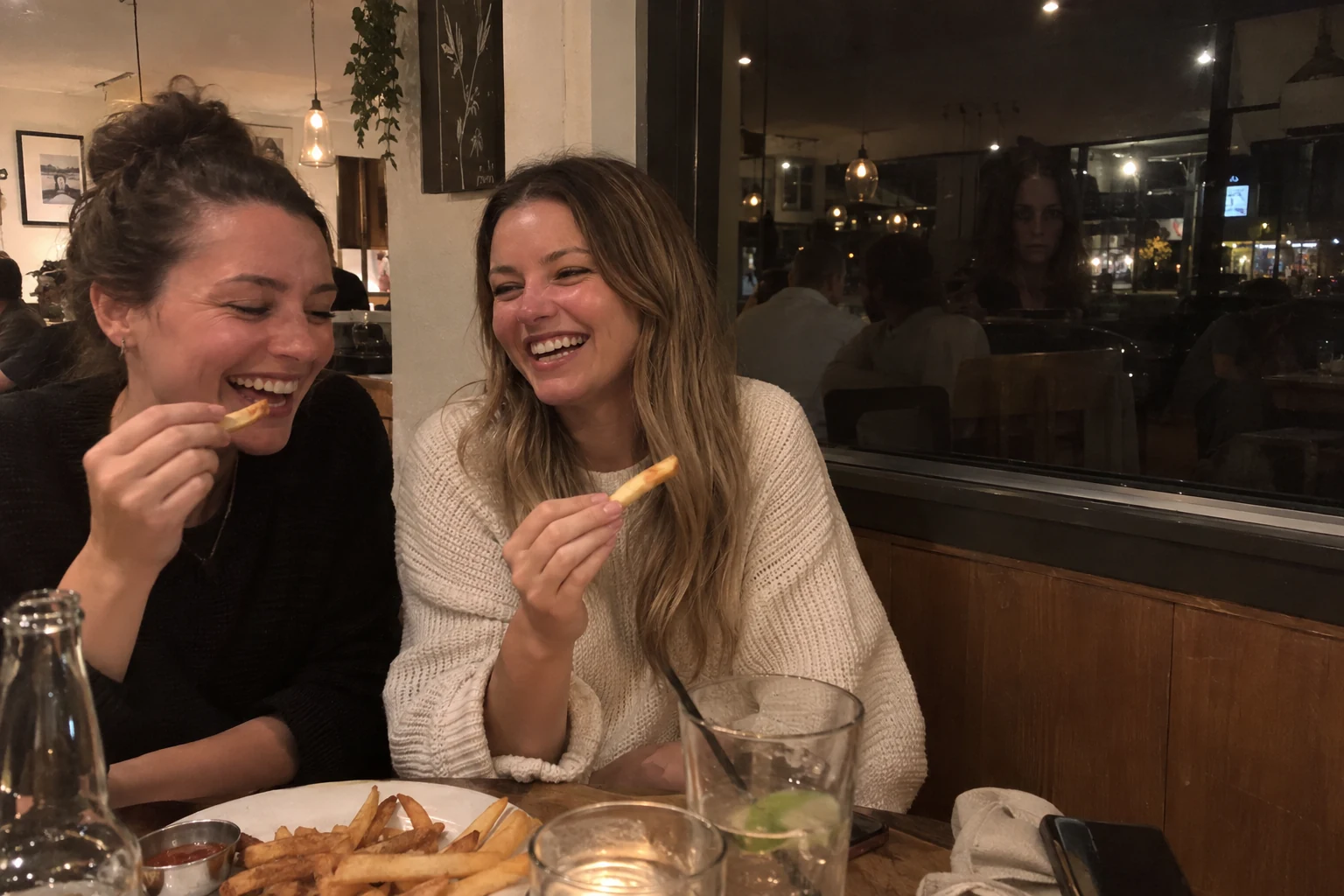
3. Ask for one detail, not a whole horror scene.
You can pick one of the visual styles or write your own scene in GhostCam. A useful description names the place, the presence and what should stay unchanged.
Add one distant, long-haired woman behind the fence on the right. Keep part of her body hidden by the fence, but leave enough of her head and shoulders visible to notice. Match the afternoon light and the softness of the background. Keep the people and the rest of the photo unchanged.
Avoid stacking several monsters, glowing eyes, fog and dramatic lighting into the same request. Those details can make the edit obvious before the viewer has had a chance to notice anything wrong.
4. Judge the preview at phone size.
Upload your photo, choose your haunting and select “Make my free preview.” No account, email or card is needed to try it; early-access limits apply, and a preview may take a minute or more.
Look at the whole image before zooming in. Can you find the presence after a few seconds? Is it large enough to read, but still part of the background? Check the original people’s faces and hands, the direction of light, and whether the new figure sits naturally behind nearby objects.
AI edits can miss details or change more than intended. Treat the actual preview as the buying decision. The example gallery illustrates the direction; it does not guarantee the same result in every photo.
5. Keep the result you actually liked.
If you like the preview, the clean full-size image is $4.99 USD as a one-time purchase. A branded full-size version is $1 USD. The purchase unlocks the same scene you previewed. There is no subscription.
A download link is delivered by email. If something goes wrong, contact support@ghostcam.app; see the seven-day refund policy for the available help.
Make a Halloween reveal people can enjoy.
For a party, a group chat or a short video, start with the full image and give people a moment to spot the detail. Then reveal where to look. A simple caption is enough: “An AI Halloween edit. Can you spot the extra guest?”
Tell people it is an edit; GhostCam does not detect real ghosts. Ask before sharing photos of other people. Customer photos are not automatically posted to the public example gallery.